

For a free blocker that keeps distracting websites out of your study browser, start with LeechBlock NG. It supports Chrome, Firefox, Edge and compatible browsers such as Brave, with site lists, schedules and timed lockdowns. It covers websites in that browser; it will not stop you opening a native phone app or desktop game. If that is where you lose time, use the device comparison below before choosing a blocker.
Quick picks: consider Freedom for sessions across a phone and computer, Cold Turkey for Windows or Mac desktop blocking, LeechBlock NG for free browser website rules, and one sec for pausing automatic phone checks. These picks compare documented features. RestMint completed one short LeechBlock test in Brave, described below; we have not performed a hands-on comparison of all four tools.
Need help starting the session? Use our 10-minute study reset, then download the free 10-page Focus Reset Workbook to follow the steps offline.
Explore the full study-focus toolkit: Find practical routines, Pomodoro timers, phone-distraction controls, app blockers and study-break ideas in the RestMint Study Focus Hub.
How to block distracting websites while studying (without blocking your coursework)
You sit down to write one paragraph. Five minutes later, you’re still in a browser—but somehow you’re reading Reddit instead of your notes. If that sounds familiar, you may only need a free website blocker for studying, not a paid app that locks down every device you own.
If you study in Chrome, Firefox, Edge or Brave
Start with LeechBlock NG if the problem is websites in one browser. Install the extension in the browser you use for schoolwork, open Options, enter your distracting domains in a block set and choose a short time window. The developer’s Quick Start says to list domains without https:// and save the options. Test access to your learning platform and references before longer sessions.
If you keep opening games or desktop apps
A browser extension is the wrong layer: it cannot stop a separately installed game. For Windows or macOS, Cold Turkey Free can block websites; its Pro version adds desktop application blocking. Freedom Free offers desktop app blocking and immediate sessions of up to two hours. Confirm platform support, required permissions and whether an app is covered before choosing.
If your phone is the distraction
First try the controls already on your device: iPhone Screen Time and Focus or Android Digital Wellbeing. They’re better starting points than installing a desktop-only blocker on the wrong device. Follow our iPhone and Android study-distraction walkthrough. If you still need coordinated sessions across devices, compare Freedom’s mobile and desktop features carefully.
If your school manages the device
Check with school IT before adding extensions or applications. “School game blocker software” can also refer to tools schools deploy to manage student devices; this article is about personal self-blocking for studying, not administrative classroom controls. Do not try to circumvent school policies.
Keep it practical: write down your next task, add only the two or three sites you actually visit instead of studying, choose a short reversible block, and confirm your library, class portal and document tools still work. After the session, measure what you finished—not just how many minutes the blocker ran.
Feature references: LeechBlock documentation, Cold Turkey plans, and Freedom’s free-plan features. Checked October 22, 2026. Individual platforms and plans may differ.
How we compared these blockers
We checked official pricing, feature and support pages on October 2, 2026 and compared supported devices, ongoing free features, paid restrictions and the ability to change a block. On October 11, 2026, Amine El Arroumi performed a short LeechBlock test in Brave: Reddit was blocked, study resources remained accessible, and Reddit reopened after he manually ended the block. In a follow-up five-minute test, Amine confirmed that Reddit reopened automatically without changing settings or manually ending the block. We have not tested Freedom, Cold Turkey or one sec for this article, and this limited check does not establish reliability, battery impact, bypass resistance or improved study outcomes. The Cold Turkey screenshot is vendor-provided; the LeechBlock screenshot is from our test.
Commercial disclosure: this guide contains ordinary source links, with no affiliate tracking links. RestMint has not verified a commercial partnership with the four products compared here.
Best app blockers for studying: quick comparison
| Tool | Where it works | Ongoing free option | Main limit or upgrade |
|---|---|---|---|
| Freedom | Windows, Mac, iOS, Android; browser support for ChromeOS/Linux | Immediate blocking sessions up to two hours | Premium adds scheduling and Locked Mode; browser-only platforms do not have native app blocking |
| Cold Turkey Blocker | Windows and macOS | Timed website blocks, exceptions and statistics | Pro adds desktop app blocking, scheduling and full locking options; no phone app |
| LeechBlock NG | Firefox, Chrome, Edge and other supported Chromium browsers | Website schedules, time limits and lockdown rules | Browser scope; does not stop native desktop or phone apps |
| one sec | iOS, Android and supported desktop browsers | Intervention for one target | Pro expands targets and features; strict block sessions are listed for iOS, not Android |
Sources: Freedom plan limits · Cold Turkey plans · LeechBlock overview · one sec platform comparison.
1. Freedom: consider it when you switch between devices
Freedom lets you include several devices in a blocking session. Its ongoing free account supports immediate sessions, custom lists and durations up to two hours; recurring schedules, starting later and Locked Mode require Premium. The free account does not require payment details.
Its pricing page lists Premium at US$8.99 monthly or approximately US$3.33 per month with annual billing. Check the full annual charge and local store terms before subscribing. The annual Premium trial is separate from the ongoing free account.
For a student moving between a laptop and phone, coordinated sessions are a plausible fit. Check your platform: Freedom’s support documentation describes ChromeOS/Linux support through a browser extension. Its platform table does not list native app blocking for Chromebook. Cross-platform availability does not mean identical controls everywhere.
2. Cold Turkey: consider it for desktop websites and applications
Cold Turkey Blocker supports Windows and macOS. Free includes website blocking, exceptions, timed blocks and statistics. Pro adds application blocking, schedules and all locking features, sold as a one-time purchase. The official pricing FAQ also offers a student-discount request route. Verify the checkout amount rather than assuming an old review’s price still applies.
The feature guide documents several locking methods, including a timer, delay and password. That makes it worth investigating if you repeatedly change your own rules. We have not tested those locks and do not claim the app is impossible to bypass. It has no Android or iOS version.
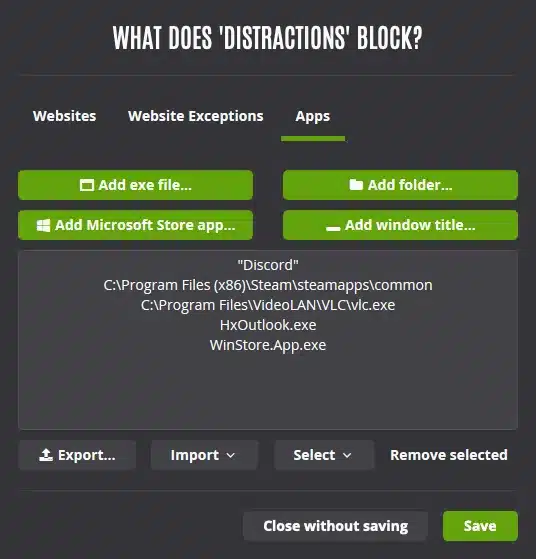
Choose it for a desktop problem, such as leaving essay research for a game. If your distraction immediately moves to your phone, a desktop-only blocker leaves that part of the routine unresolved.
3. LeechBlock NG: consider it for free browser website rules
LeechBlock NG is a free extension for Firefox, Chrome, Edge and other supported Chromium browsers. It offers site groups, schedules, usage allowances, exceptions and immediate lockdown periods. It is the most direct option here to investigate when the distraction happens in browser tabs and you want to avoid a subscription.
It operates inside the browser where it is installed. Changing browsers or opening a native app can leave that scope. Its developer says it is not a parental-control tool; treat it as a personal study aid. A password or random code can add friction to changing settings without making your entire computer inaccessible.
Follow the official Quick Start: add distracting domains, choose when to block them, and save the rules. Keep necessary research sites available. For a first session, use a small list you understand rather than importing a sweeping blocklist.
Our short LeechBlock test in Brave
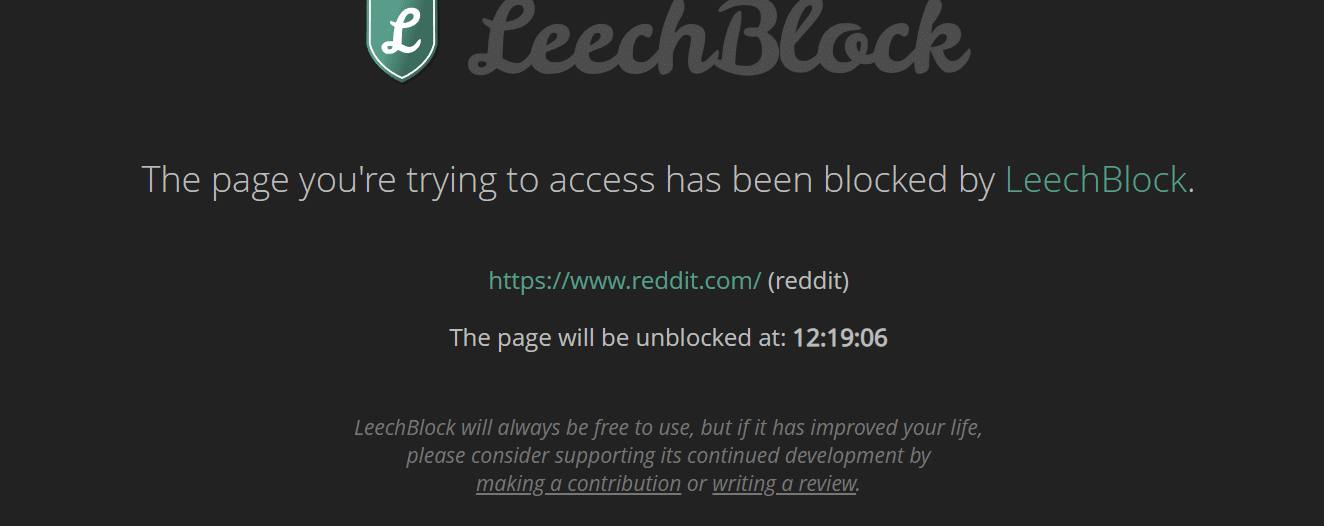
Tested by Amine El Arroumi on October 11, 2026. In a short Brave browser test, LeechBlock blocked Reddit while the study resources he checked remained accessible. The screenshot shows the Reddit block page and a scheduled unblock time of 12:19:06.
In the first test, Amine ended the block manually and confirmed that Reddit reopened. In a follow-up five-minute test the same day, he confirmed that Reddit reopened automatically, with settings unchanged and no manual cancellation. This automatic-expiry result is based on his reported observation; the screenshot below documents the earlier manual test. These short checks do not measure long-term reliability, productivity gains or resistance to changing the rules.
Example: block distracting websites for a 30-minute study session
This is a suggested LeechBlock NG configuration, not a hands-on test. Use it in your own supported browser and substitute the sites that interrupt your study time.
1. Choose the sites. Open LeechBlock’s Options and select Block Set 1. Give it a name such as “Study session.” Under What to Block, enter one domain per line, for example reddit.com and instagram.com. Omit https:// and www.. Leave your course portal and research sites off this list.
2. Choose the window. Under When to Block, enter 1900-1930 for a 7:00–7:30 p.m. session and select the days you want it to run. For this time-window example, leave the time-limit fields blank and choose the option to block within the time periods OR after the time limit.
3. Save and check. Save Options. First try a short window while you are at the computer: check that a listed distraction is blocked and that your course portal, documents and needed research still open. Adjust the list before using advanced controls that restrict access to settings.
The extension covers websites in the browser where it is installed. It does not block the Instagram app on your phone or a desktop game. See the official LeechBlock instructions for exceptions, permissions and advanced rules.
4. one sec: consider it for automatic phone-checking
one sec inserts an intervention before you continue into a distracting app or website. Its free option targets one app; Pro supports more targets. This is useful to investigate when the problem is opening the same app almost automatically rather than needing every distraction unavailable.
The official plan table distinguishes platforms: strict block sessions are listed for iOS Pro, while Android is marked unavailable for that feature. Website blocking is listed for iOS and desktop browsers, also not Android in that table. Do not buy it assuming all platforms have the same hard-blocking features.
The support article quotes US$19 per year and mentions a student discount; the FAQ shows euro pricing and says prices differ by region. Confirm your local offer. If one target is enough, test the free intervention before paying.
Which blocker fits your study setup?
| Your study problem | Option to consider | What to check |
|---|---|---|
| Social websites in one browser | LeechBlock NG | Free browser rules; native apps remain outside its scope. |
| Websites on a Windows or Mac computer | Cold Turkey Free | Website blocking and exceptions; application blocking requires Pro. |
| Desktop apps plus immediate sessions | Freedom Free | Desktop app blocking is included; free sessions last up to two hours. Scheduling and Locked Mode require Premium. |
| Distractions across phone and computer | Freedom | Check the features supported on each device and whether the free session limits fit. |
| Automatic phone checking | one sec | The free intervention targets one app. Strict block sessions vary by platform and plan. |
Choose for the device you actually use, then test a short session with one assignment. These are feature-based suggestions, not measured performance rankings. Compare Freedom’s free and Premium features and Cold Turkey’s plan limits before paying.
A first-session checklist before you upgrade
Use one real assignment to decide whether the tool fits. For example, aim to draft the first 200 words of an essay, solve five exercises or annotate three pages. Choose a short session and use reversible settings while you check the setup.
| Before starting | After the session |
|---|---|
| List the distracting apps or sites you actually use. | Did the configured rule cover those distractions? |
| Open the course portal, reference material and submission page. | Could you still access the resources needed to work? |
| Check how the session ends and what you can change. | Did the available controls fit your routine? |
| Write one concrete output goal. | Record what you completed, not just how long the timer ran. |
Try the same task type over several sessions. Note setup time, unrelated app switches and completed work. These notes can guide a purchase, but they do not prove improved grades or concentration. Upgrade only when a named free-plan limit prevents the workflow you need.
If timed intervals help you begin, pair the blocker with a simple timer from our Pomodoro app comparison. If you would rather start with the controls already on your phone, read our iPhone and Android distraction guide.
Frequently asked questions
What is the best free app blocker for studying?
There is no universal winner. Match the ongoing free features in the comparison table to the device where distraction occurs. A free website blocker and a free phone intervention solve different problems.
Is a free plan the same as a free trial?
No. A free plan supplies an ongoing limited feature set. A trial temporarily unlocks paid features and may renew under the checkout terms. Check whether you are creating a free account or accepting a subscription trial.
Can an app blocker be impossible to bypass?
We cannot establish that for any product here. Blocking strength depends on the platform, permissions and settings, and we have not performed bypass tests. Compare documented lock controls, then check the behavior on your own device.
Do I need a blocker if I already use a Pomodoro timer?
Only when switching away from the task is still a problem. A timer structures the interval; a blocker restricts selected distractions. Adding a second tool should solve a difficulty you have observed.
How can I block distractions without losing access to research?
Start with a short list of distracting domains rather than blocking the whole internet. Keep your course portal, document tools and research sources available. If you need one page on an otherwise blocked site, check the tool’s supported exceptions or URL rules and test that page before starting a longer session.
Why is a website blocked but its app still opens?
Website blocking and native application blocking are different features. LeechBlock works inside its installed browser. Cold Turkey’s free plan blocks websites, while Pro adds desktop application blocking. Freedom includes desktop app blocking in its free plan, but phone features depend on the platform. Select a tool that covers the app and device causing the distraction.
Can I use a blocker on a school-managed laptop?
Check your school’s installation rules first. Cold Turkey requires administrator rights and supports Windows and macOS, not ChromeOS. Browser extensions may also be restricted on managed devices. Ask the school’s IT team about approved options; use settings you are permitted to change rather than trying to bypass device restrictions. See Cold Turkey’s system requirements.
What should I check if LeechBlock is not blocking a site?
Check that you installed it in the browser you are using, entered the correct domain, selected the intended days and time period, and saved the options. Review whether the time-period and time-limit rules use AND or OR. Check the extension’s required site permissions against the official troubleshooting guidance. Test with a short window before adding settings locks.
Explore more RestMint focus guides. Product information was checked October 2, 2026; plan terms and platform features can change.
Leave a Reply